How to Clear the Teams Cache in Windows 11 (New Teams)
If Microsoft Teams freezes, opens to a blank window or keeps looping at sign-in, clearing its cache is one of the quickest fixes. Here is how to clear the Teams cache in Windows 11 for the new Teams app, and when you should not bother.
Tested on Windows 11 25H2 · new Teams 26260.1701.5139.3736
Quick fix
- Quit Teams: right-click the Teams icon near the clock and select Quit.
- Press Win + R, paste the cache path below and select OK.
- Delete everything in that folder, then open Teams again.
Missing messages or chat history? Don’t clear the cache for that. Microsoft says clearing the cache doesn’t fix missing messages, chat history, channels or wrong unread counts, and it deletes the logs needed to find the cause.
When clearing the Teams cache helps
Clearing the cache is a targeted fix for problems with the Teams app on your own PC. It is worth trying when:
- Teams won’t open, or opens to a blank window.
- Teams is stuck in a sign-in loop.
- Teams became sluggish or glitchy after an update.
- Profile pictures or other content in Teams won’t load properly.
If the same problem happens in Teams on the web (teams.microsoft.com), the cache on your PC isn’t the cause.
Method 1: Reset the Teams app (easiest)
Windows can reset the Teams app for you. This clears the cache and the rest of the app’s local data, including your Teams personal settings, so you may need to set your theme and notification preferences again.
- Open Settings (Win + I) and go to Apps › Installed apps.
- Search for Microsoft Teams.
- Select the ⋯ (More options) button next to it, then Advanced options.
- Scroll to Reset and select Reset.
- Open Teams and sign in again.
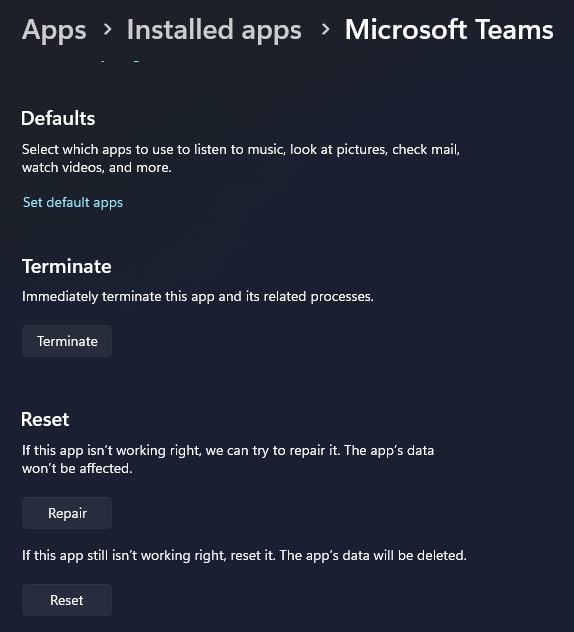
Method 2: Delete the Teams cache files
Use this if you’d rather keep your Teams settings, or if the Reset option doesn’t help.
- Quit Teams: right-click the Teams icon near the clock and select Quit. Closing the window isn’t enough, because Teams keeps running in the background.
- Press Win + R to open the Run box.
- Paste this path and select OK:
%userprofile%\appdata\local\Packages\MSTeams_8wekyb3d8bbwe\LocalCache\Microsoft\MSTeams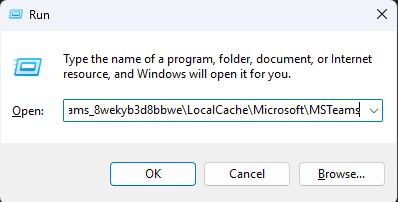
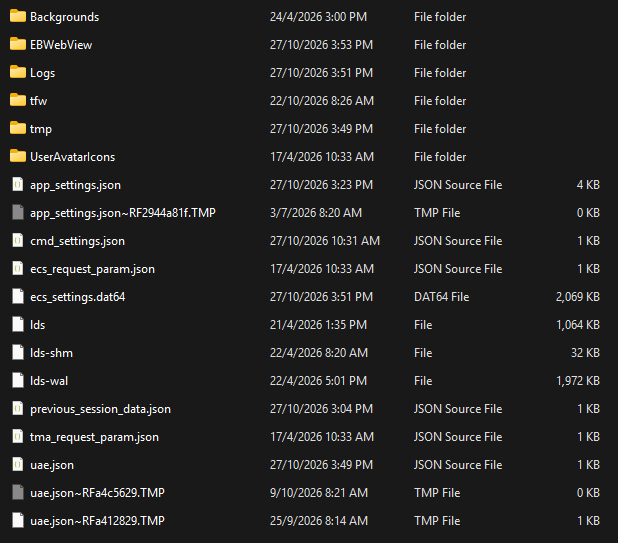
- Press Ctrl + A to select everything in the folder, then press Delete.
- Open Teams again.
The first start after clearing the cache is slower than usual while Teams rebuilds it. That’s normal.
Using Teams on a Mac?
We haven’t tested the Mac steps on tech201 yet. Microsoft’s own instructions for clearing the new Teams cache on macOS are in its official guide.
Questions people ask
Is it safe to clear the Teams cache?
Yes, for problems with the Teams app on your PC. Your chats, files and meetings live in your Microsoft 365 account, not in the cache, so they load again once Teams syncs. Resetting the app (Method 1) also removes your Teams personal settings.
Where is the Teams cache folder in Windows 11?
For the new Teams app it is in %userprofile%\appdata\local\Packages\MSTeams_8wekyb3d8bbwe\LocalCache\Microsoft\MSTeams. Paste that path into the Run box (Win + R) to open it.
Will clearing the Teams cache fix missing messages?
No. Microsoft says clearing the cache doesn’t fix missing messages, chat history, channels or unread counts, and it deletes the logs needed to diagnose those problems.
Do I need to close Teams before clearing the cache?
Yes. Right-click the Teams icon near the clock and select Quit. If Teams is still running, some cache files are in use and won’t delete.