Windows 11 Running Slow? 10 Tested Ways to Speed It Up
A slow Windows 11 laptop usually comes down to a few things: too many apps starting with Windows, a nearly full drive, power settings that hold it back, or old hardware. To speed up Windows 11, work through these fixes in order. The first eight are free, and you should try them before spending money on an upgrade.
Tested on Windows 11 25H2 · ThinkPad T14s Gen 6
Quick fix
- Restart your laptop and install any Windows updates.
- Turn off apps you don’t need in Task Manager › Startup apps.
- Free up disk space in Settings › System › Storage.
In this guide
Why is Windows 11 so slow?
- Apps that start with Windows and keep running in the background.
- A drive that is nearly full, which leaves Windows little room to work and update.
- Power settings that favour battery life over speed.
- Malware or unwanted software using your processor.
- An old hard disk drive (HDD) or too little memory (RAM) for today’s apps.
1. Restart and install Windows updates
Choose Restart, not Shut down: with Windows’ Fast startup feature, shutting down doesn’t fully refresh the system, but a restart does. Then go to Settings › Windows Update › Check for updates and install what’s waiting, including driver updates under Advanced options › Optional updates.
2. Find what is slowing it down
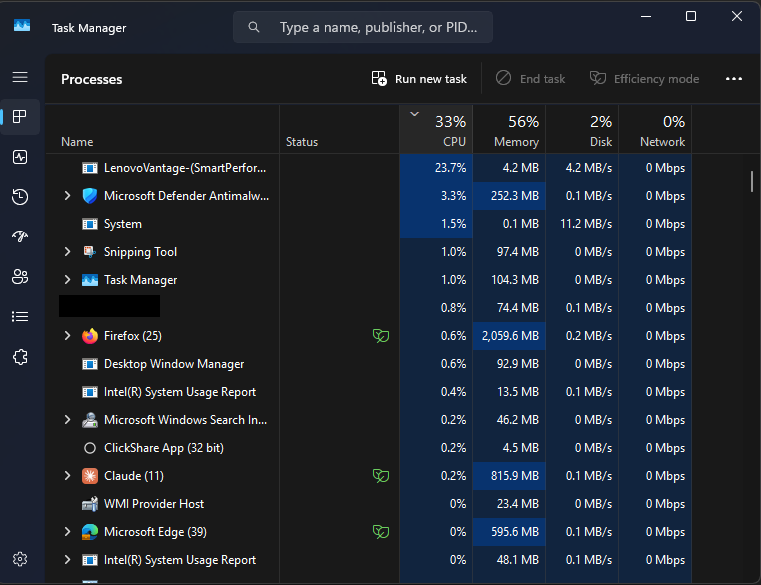
Press Ctrl + Shift + Esc to open Task Manager. On the Processes page, select the CPU, Memory or Disk column to sort by what’s using the most. If an app you don’t need is near the top, select it and choose End task. Leave Windows processes you don’t recognise alone.
3. Turn off startup apps you don’t need
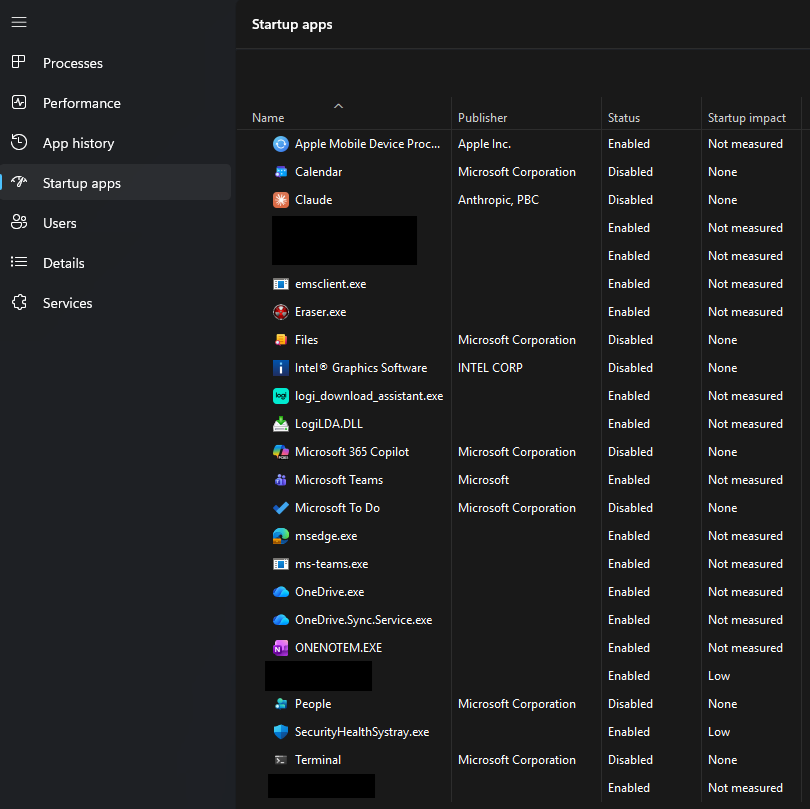
In Task Manager, open Startup apps. Look at the Startup impact column, then right-click apps you don’t need straight after signing in and choose Disable. They still work when you open them yourself. Keep your antivirus and anything you rely on, such as sync tools, enabled.
4. Free up disk space and turn on Storage Sense
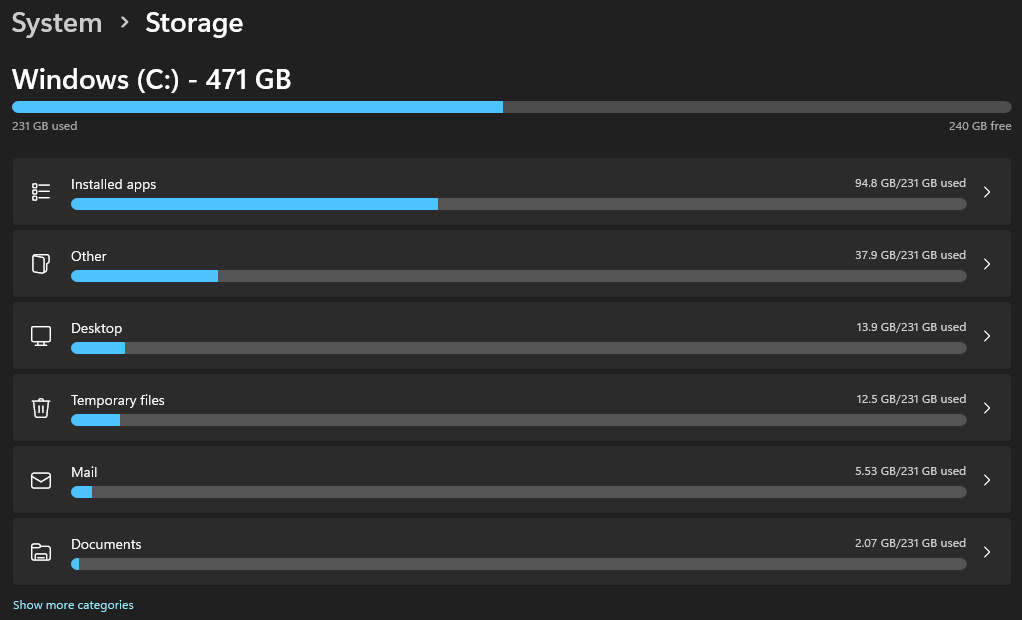
Go to Settings › System › Storage. Use Cleanup recommendations to remove temporary files, large unused files and leftovers from old updates. Then turn on Storage Sense, which deletes temporary files and empties the Recycle Bin automatically.
5. Set Power mode to Best performance
Go to Settings › System › Power & battery and set Power mode to Best performance. Laptops also tend to run faster when plugged in, so try it on the charger too. This uses more battery, so switch back when you need the battery to last.
6. Uninstall apps you don’t use
Go to Settings › Apps › Installed apps. Select ⋯ next to anything you don’t use, including trial software that came with the laptop, and choose Uninstall.
7. Scan for malware
Open Windows Security › Virus & threat protection. Run a Quick scan, or under Scan options choose Full scan if the laptop has been acting strangely. Skip “PC cleaner” and registry cleaner tools: Windows doesn’t need them.
8. Turn off visual effects
Search the Start menu for Adjust the appearance and performance of Windows, select Adjust for best performance and then OK. It makes Windows look plainer, but older laptops feel noticeably snappier.
9. Repair Windows system files
Right-click the Start button and select Terminal (Admin). Run these two commands one at a time, waiting for each to finish, then restart:
sfc /scannowDISM /Online /Cleanup-Image /RestoreHealthSystem File Checker repairs damaged Windows files, and DISM repairs the system image those files come from.
10. Upgrade the hardware to speed up Windows 11
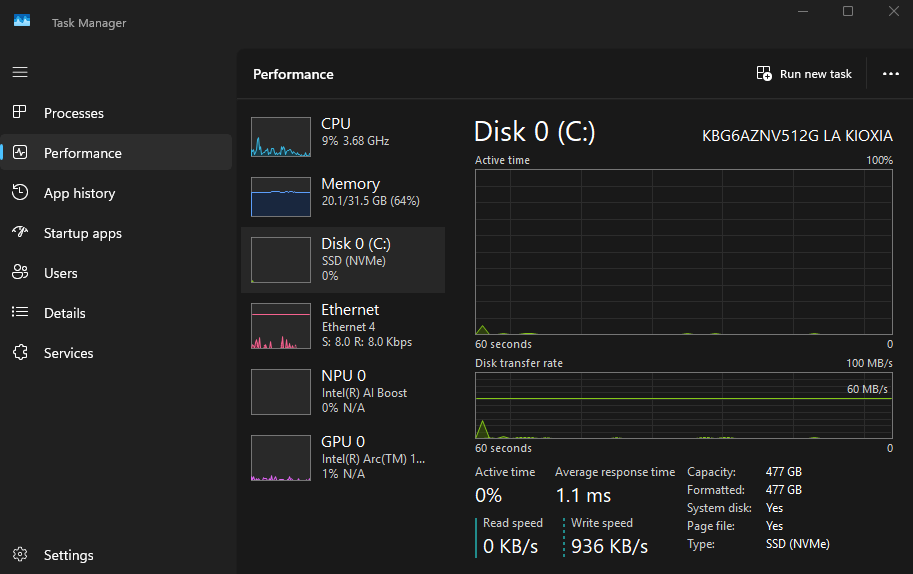
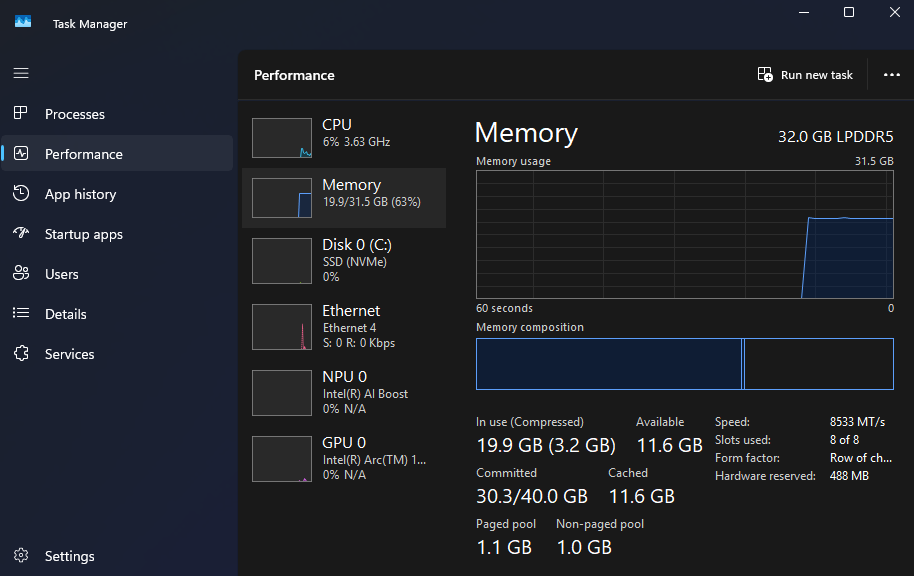
If the laptop is still slow, check what is inside it. In Task Manager, open Performance:
- Select your Disk. If it says HDD, swapping it for an SSD is the single biggest speed upgrade for an older laptop.
- Select Memory. If usage stays high, check how much RAM is installed and whether there are free Slots. Adding RAM helps if you keep many apps or browser tabs open.
Before buying parts, look up your laptop model to see which SSD types and how much RAM it supports. Some thin laptops have memory soldered to the board, so it can’t be upgraded.
Questions people ask
Why is my Windows 11 laptop suddenly so slow?
A sudden slowdown often follows an update, a new app that starts with Windows, or a nearly full drive. Check Task Manager first to see what is using your processor, memory or disk.
Does more RAM make Windows 11 faster?
Only if you are running out of it. If Task Manager shows memory usage staying high, adding RAM helps. If usage is low, more RAM won’t make a noticeable difference.
Is an SSD worth it for an old laptop?
Usually yes. If Task Manager shows your disk is an HDD, moving to an SSD makes starting Windows and opening apps much faster.
Will disabling startup apps break anything?
No. Disabled apps simply don’t start automatically; you can still open them yourself and re-enable them any time in Task Manager.
Related fixes
- How to check your laptop battery health in Windows 11
- How to clear the Teams cache in Windows 11
- Outlook keeps asking for password? 7 fixes that work
- How to find your BitLocker recovery key in Windows 11
Sources: Tips to improve PC performance in Windows and Use the System File Checker tool (Microsoft Support), Storage Sense (Microsoft Learn).