How to Find Your BitLocker Recovery Key in Windows 11
If your PC stopped at a blue BitLocker recovery screen, you need the 48-digit BitLocker recovery key to unlock the drive. In most cases it is saved in the Microsoft account you used to set up the PC, and you can look it up from your phone or another computer in a couple of minutes.
Tested on Windows 11 25H2 · ThinkPad T14s Gen 6
Quick fix
- On your phone or another computer, go to aka.ms/myrecoverykey and sign in with the Microsoft account you used on the locked PC.
- Find the key whose Key ID starts with the same 8 characters shown on the recovery screen.
- Type that 48-digit recovery key on the locked PC and press Enter.
In this guide
Why you are seeing the BitLocker recovery screen
BitLocker encrypts your drive and normally unlocks it automatically when Windows starts. When it can’t confirm the PC is safe to unlock, it stops and asks for the recovery key instead. Common triggers:
- A BIOS or firmware update, or a change to startup settings.
- New hardware, such as a replaced motherboard, or the drive moved to another PC.
- Too many wrong PIN or password attempts.
Many Windows 11 laptops turn on encryption automatically when you first sign in with a Microsoft account, so you can see this screen even if you never turned BitLocker on yourself.
Match the Key ID first
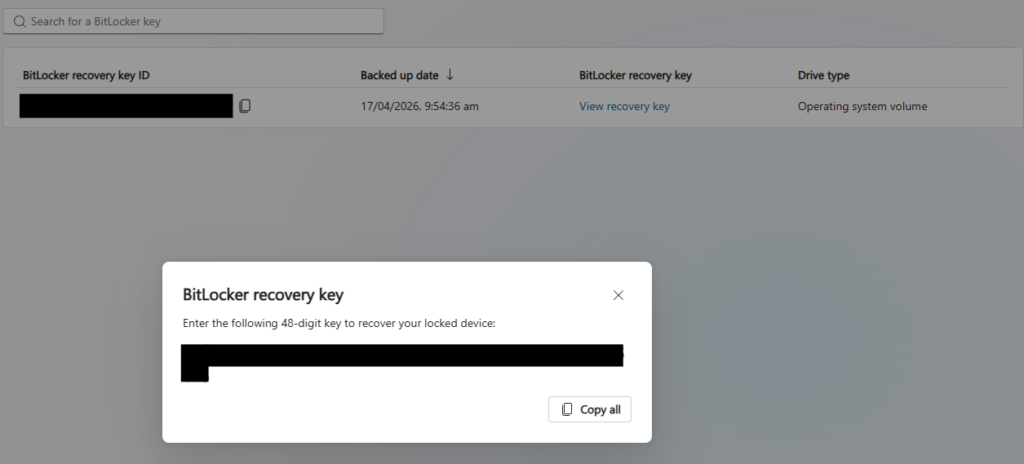
The recovery screen shows a Key ID. If your account lists more than one key, for example from an older laptop, the Key ID tells you which one belongs to this drive. Comparing the first 8 characters is enough. The recovery key itself is a 48-digit number in eight groups of six.
On Windows 11 version 24H2 and later, the recovery screen also shows a hint of which Microsoft account holds the key.
Where to find your BitLocker recovery key
In your Microsoft account
From another device, go to aka.ms/myrecoverykey and sign in. Keys are listed by device name and Key ID. If someone else set up the PC, such as a family member or the shop you bought it from, the key may be in their account instead.
In a work or school account
If the PC was ever signed in with a work or school account, go to aka.ms/aadrecoverykey, sign in, open Devices, expand the PC and select View BitLocker Keys. If it isn’t there, your IT team can look it up using the Key ID.
On a printout or a USB flash drive
When BitLocker was turned on, the key may have been printed or saved to a USB flash drive. Look for a printout that shows the Key ID. If the key is on a USB drive, plug it into the locked PC and follow the prompts, or open the text file on another computer.
Back up your recovery key while Windows still works
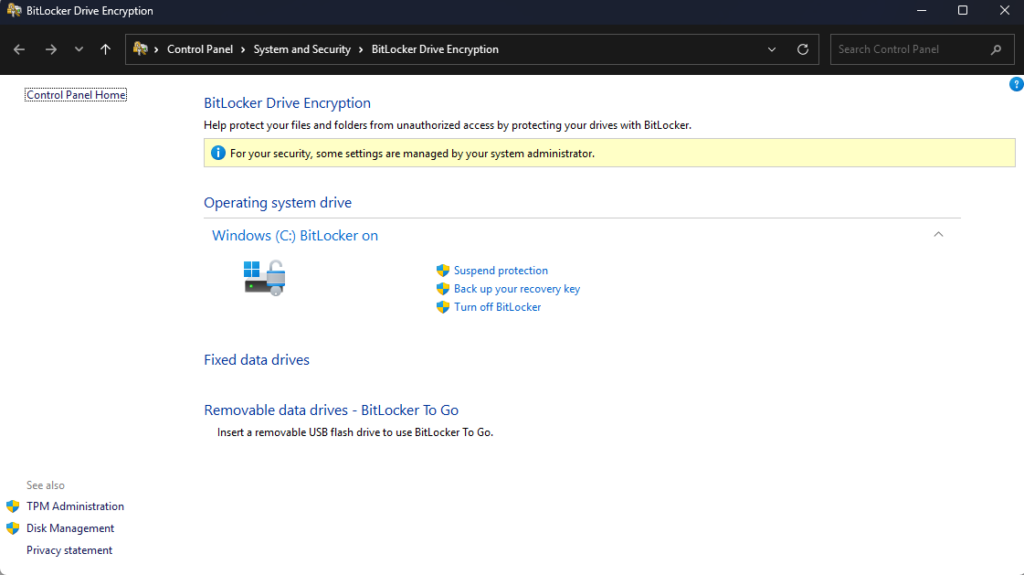
If your PC is working now, save a copy of the key so you are never stuck. Select Start, type BitLocker, open Manage BitLocker and select Back up your recovery key. You can save it to your Microsoft account, a USB flash drive, a file or a printout. Keep the printout or USB drive away from the laptop itself.
On Windows 11 Home? Manage BitLocker isn’t available. Home uses device encryption, which saves the key to your Microsoft account automatically, so check that it is listed at aka.ms/myrecoverykey.
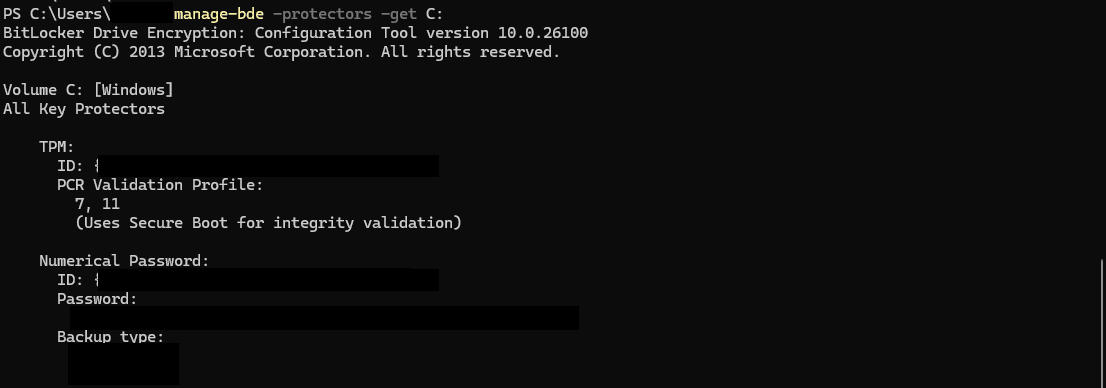
To see the key on screen, right-click Start, select Terminal (Admin) and run:
manage-bde -protectors -get C:Under Numerical Password, the ID is the Key ID and the Password is your 48-digit recovery key.
If you can’t find the key
There is no way around BitLocker without the key, and Microsoft Support can’t retrieve or recreate it. Before you give up:
- Check every Microsoft account you, or whoever set up the PC, might have used.
- For a work laptop, contact your IT team and give them the Key ID.
- If you recently changed BIOS or startup settings, undoing that change may let Windows start normally.
If none of that works, the only option is to reset the PC using Windows recovery options, which removes all files on the drive. Anything synced to OneDrive or backed up elsewhere can be restored afterwards.
Questions people ask
Where is my BitLocker recovery key?
Usually in the Microsoft account you used to set up the PC: sign in at aka.ms/myrecoverykey from another device. It may also be in a work or school account, on a printout or on a USB flash drive.
Can I bypass the BitLocker recovery screen?
No. Without the recovery key the drive can’t be unlocked. If you can’t find the key, you can reset the PC, but that removes all files on the drive.
Why does my PC keep asking for the recovery key?
BitLocker asks when it can’t unlock the drive automatically, often after a BIOS or firmware update or a hardware change. If it asks on every start, contact your laptop maker or your IT team.
Can Microsoft give me my recovery key?
No. Microsoft Support can’t retrieve or recreate a lost key. If it was saved to your Microsoft account, you can see it yourself at aka.ms/myrecoverykey.
Related fixes
- Windows 11 running slow? 10 tested ways to speed it up
- How to check your laptop battery health in Windows 11
- Outlook keeps asking for password? 7 fixes that work
Sources: Find your BitLocker recovery key and Back up your BitLocker recovery key (Microsoft Support), manage-bde protectors (Microsoft Learn).