Printer Offline in Windows 11? 8 Fixes to Get It Printing
Your printer is switched on, the lights look fine, and Windows still says printer offline. Offline only means your PC can’t talk to the printer right now. The fixes below go from the quickest checks to the ones that stop it happening again, so start at the top and stop when your printer prints.
Tested on Windows 11 25H2 · HP LaserJet Pro 3103fdw
Quick fix
- Turn the printer off, unplug it for 30 seconds, then turn it on and restart your PC.
- Check the printer and PC are on the same Wi-Fi or LAN network (or the USB cable is firmly in).
- In Devices and Printers, open your printer’s queue, cancel any stuck jobs, and make sure Use Printer Offline isn’t ticked if your printer shows it.
- Still offline? Restart the Print Spooler service, then remove and add the printer again.
In this guide
Why is my printer offline?
Windows marks a printer offline when it sends a job and gets no answer. The usual reasons:
- The printer went to sleep, lost Wi-Fi, or got a new IP address from your router, so Windows is knocking on the old address.
- Use Printer Offline got switched on, or a stuck job is blocking the queue.
- The Print Spooler service, which hands jobs to the printer, has stalled.
- The driver or the printer’s port in Windows is out of date or broken, often after a Windows or router change.
1. Restart the printer, router and PC
Turn the printer off and unplug it. Wait about 30 seconds, plug it back in and turn it on. If the printer is on Wi-Fi, restart your router too, then restart your PC. This clears a lot of temporary connection errors.
While the printer starts, check its display for an error such as a paper jam, an open door or low toner. A printer that is in an error state can also show as offline.
Wi-Fi printer? Make sure it is on the same network as your PC. On most HP LaserJet Pro models the Wi-Fi status is in the network or wireless menu on the printer’s control panel. A PC on a guest network or a different band name can’t see it.
2. Turn off Use Printer Offline and clear the queue
Windows has a setting that keeps a printer offline on purpose. It sometimes gets switched on after a failed job. To check it:
- Select Start, type Control Panel and open it.
- Select View devices and printers (under Hardware and Sound).
- Right-click your printer and select See what’s printing.
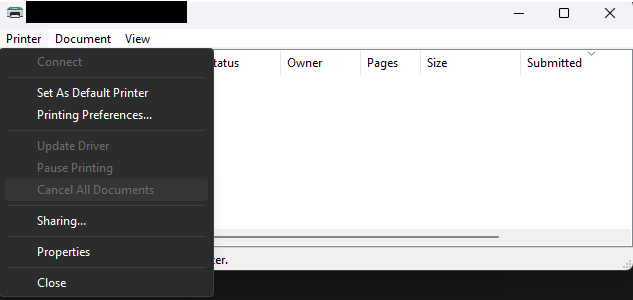
- Open the Printer menu. If it lists Use Printer Offline with a tick, select it to clear the tick. Many printers in Windows 11 don’t show this option at all; if yours doesn’t, carry on.
- In the same menu, select Cancel All Documents and confirm, so an old stuck job doesn’t block new ones.
Then print a test page: Settings › Bluetooth & devices › Printers & scanners › select your printer › Print test page.
3. Set it as your default printer
If you have more than one printer, or Windows keeps switching to the last one you used, your job may be going to the wrong place.
- Go to Settings › Bluetooth & devices › Printers & scanners.
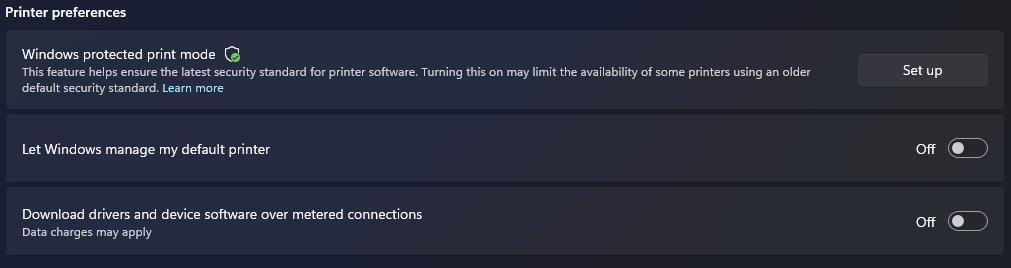
- Turn off Let Windows manage my default printer.
- Select your printer and select Set as default.
4. Run the printer troubleshooter
Windows 11 has a printer troubleshooter in the Get Help app that checks the spooler, the driver and the connection, and fixes what it can. Go to Settings › System › Troubleshoot › Other troubleshooters, then select Run next to Printer. Follow the prompts and pick your printer when asked.
If it says it fixed something, print a test page before you move on.
5. Restart the Print Spooler service
The Print Spooler holds print jobs and passes them to the printer. When it hangs, every printer can look offline.
- Select Start, type services and open Services.
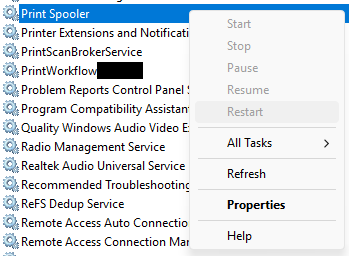
- Scroll to Print Spooler, right-click it and select Restart.
- Check that its Startup type shows Automatic.
If Restart is greyed out, your account doesn’t have administrator rights on this PC. Sign in with an administrator account, or on a work PC ask your IT team.
6. Remove the printer and add it again
Re-adding the printer makes Windows find it again at its current address, which fixes most cases where the printer’s IP address changed.
- Go to Settings › Bluetooth & devices › Printers & scanners.
- Select your printer, select Remove, then Yes.
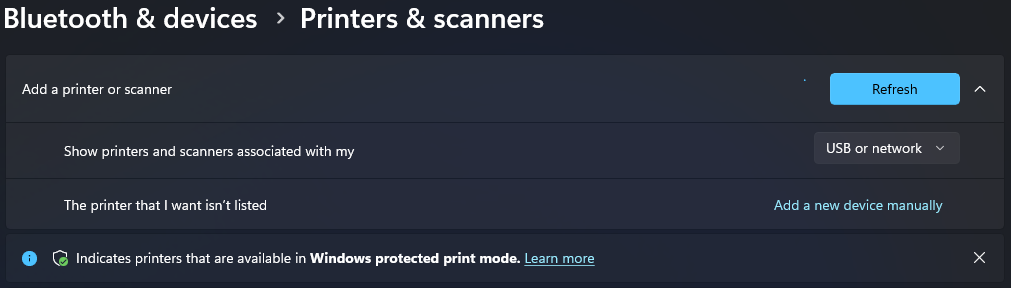
- Make sure the printer is on and connected, then select Add device next to Add a printer or scanner.
- Pick your printer from the list and wait for Windows to finish setting it up.
If your printer isn’t listed, select Add a new device manually next to The printer that I want isn’t listed, then add it by its IP address (fix 8 shows how to find it).
7. Update or reinstall the printer driver
A driver that is corrupt or too old for your version of Windows can leave the printer stuck offline. Get the current driver from the maker’s site, not a third-party download site:
- HP: HP Software and Driver Downloads. Enter your model and install the full driver package.
- Other brands: the support or downloads page on the maker’s own website.
Remove the printer first (fix 6), install the new driver, restart your PC, then add the printer again.
HP printer? The HP app has a Diagnose & Fix tool (the wrench icon) that checks the connection and driver for you. It’s worth a run before you reinstall anything.
8. Give a Wi-Fi printer a fixed IP address
If your printer keeps going offline every few days, your router is probably giving it a new IP address. Fix it in two parts.
Reserve an address in your router
Print a network configuration page from the printer’s control panel (usually under the setup, reports or network menu) to see its current IP address. Then sign in to your router and set up a DHCP reservation (some routers call it a static lease or address reservation) for the printer, so it always gets the same address. The menu names differ by router, so check your router’s manual.
Point Windows at that address
- Go to Settings › Bluetooth & devices › Printers & scanners, select your printer, then Printer properties.
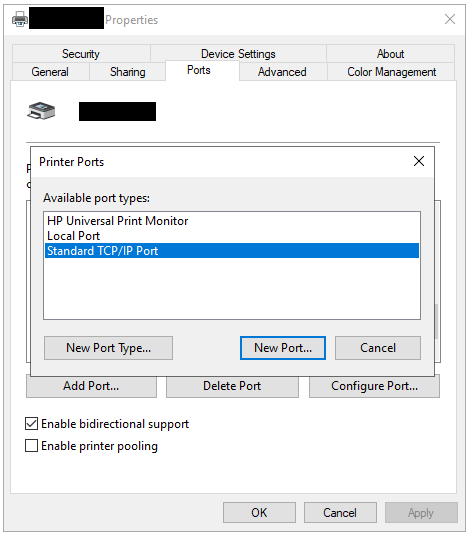
- Open the Ports tab and select Add Port.
- Choose Standard TCP/IP Port, select New Port, then Next.
- Type the printer’s IP address, finish the wizard, and make sure the new port is ticked in the list.
- Select Apply and print a test page.
Questions people ask
Why does my printer keep going offline?
Usually because it goes to sleep and comes back with a new IP address, or it drops off Wi-Fi. Reserving its IP address in your router and adding a Standard TCP/IP port in Windows (fix 8) stops this for most home printers.
How do I get my printer back online?
Restart the printer, router and PC, clear any stuck jobs in the print queue (and untick Use Printer Offline if it is shown), then restart the Print Spooler service. If it is still offline, remove the printer in Settings and add it again.
Why is my HP printer offline?
The same causes apply to HP printers: a changed IP address, a sleeping printer, a stuck queue or an old driver. HP’s own app also has a Diagnose & Fix tool that checks the connection and driver.
Can a Windows update make my printer go offline?
Yes, an update can replace or break a printer driver. Install the current driver from the printer maker’s website, then remove and re-add the printer.
Related fixes
- Windows 11 running slow? 10 tested ways to speed it up
- Outlook keeps asking for password? 7 fixes that work
- How to clear the Teams cache in Windows 11
Sources: Troubleshooting offline printer problems in Windows (Microsoft Support), Printer status is Offline and Printer isn’t responding (Microsoft Learn), HP printer offline issues (HP Support).