PowerShell vs Command Prompt: What’s the Difference?
PowerShell vs Command Prompt comes down to this: Command Prompt runs simple text commands and old batch files, while PowerShell is a full scripting shell that works with objects and can automate almost anything in Windows. Both are already on your PC, both open in Windows Terminal, and most everyday commands work in either. This guide shows where they differ and which one to pick.
Tested on Windows 11 25H2 · Dell Latitude 5400 · Windows PowerShell 5.1 and PowerShell 7.7
Quick answer
- Use PowerShell for anything new: scripts, settings, services, files in bulk and remote PCs.
- Use Command Prompt when a guide or an old
.batfile was written for it. - Programs such as
ipconfig,ping,shutdownandwingetwork the same in both. - To open either one, right-click Start, select Terminal, then pick the shell from the drop-down arrow.
In this guide
What Command Prompt and PowerShell are
Command Prompt (cmd.exe) is the classic Windows command shell. You type a command, it prints text back. It also runs batch files (.bat and .cmd), which many older install and login scripts still use.
PowerShell is a shell and a scripting language built on .NET. Its commands are called cmdlets and follow a Verb-Noun pattern, such as Get-Service, Stop-Process or Restart-Computer. Scripts are saved as .ps1 files.
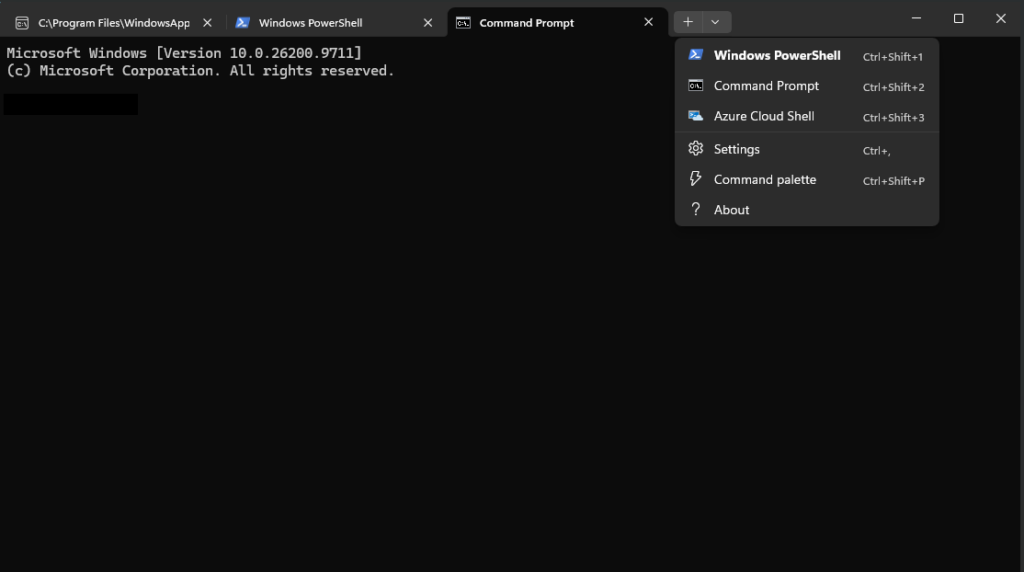
Both are only the shell. The window around them is Windows Terminal, the default terminal app in Windows 11, which opens PowerShell in a new tab unless you change the default profile.
PowerShell vs Command Prompt: the key differences
- Output: Command Prompt passes plain text from one command to the next. PowerShell passes objects with properties, so you can sort, filter and pick columns without cutting up text.
- Commands: Command Prompt has a small set of built-in commands plus whatever programs are on the PC. PowerShell has thousands of cmdlets for services, processes, the registry, networking, Microsoft 365 and more.
- Scripting: batch files are fine for a few lines. PowerShell scripts have proper variables, loops, functions, error handling and modules.
- Familiar names: PowerShell has aliases, so
cd,dir,copy,delandclsstill work. They point to cmdlets, though, so old switches likedir /sdon’t. UseGet-ChildItem -Recurseinstead. - Remote PCs: PowerShell can run commands on other computers with remoting. Command Prompt can’t, apart from a few tools that have their own remote switch.
- Cross-platform: PowerShell 7 also runs on macOS and Linux. Command Prompt is Windows only.
Here is the object idea in practice. This PowerShell line lists the five processes using the most CPU time:
Get-Process | Sort-Object CPU -Descending | Select-Object -First 5Get-Process returns process objects, Sort-Object sorts them by their CPU property, and Select-Object keeps the first five. The nearest Command Prompt command, tasklist, prints a text table you would have to sort by hand.
Filtering works the same way. This shows only the services that are running right now:
Get-Service | Where-Object Status -eq 'Running'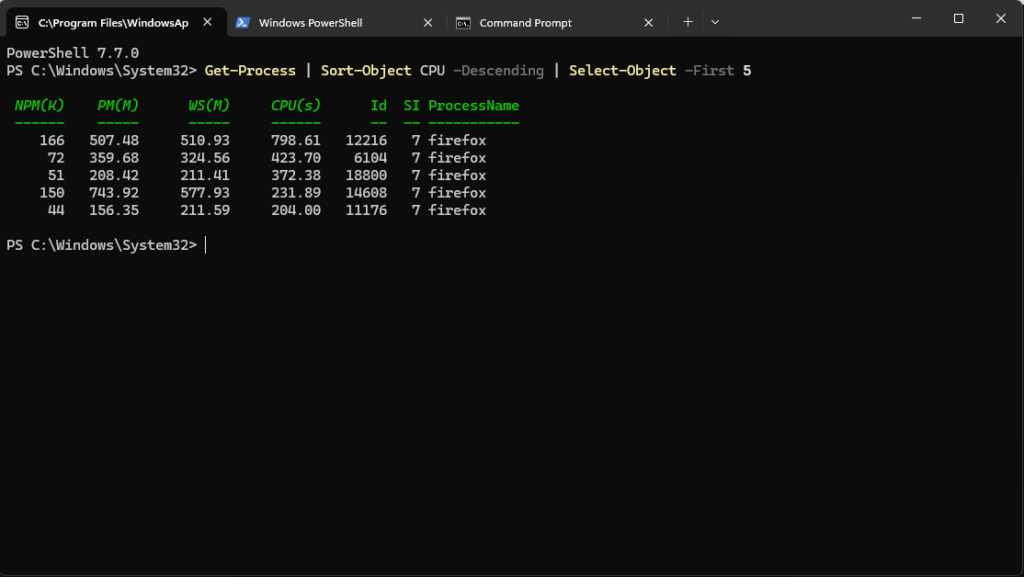
Windows PowerShell 5.1 vs PowerShell 7
Windows 11 comes with Windows PowerShell 5.1 (powershell.exe). PowerShell 7 (pwsh.exe) is the newer, separate product that gets new features. It installs side by side and doesn’t replace 5.1.
- 5.1 is built into Windows and works with every older Windows module and admin tool.
- 7 adds faster parallel loops (
ForEach-Object -Parallel), shorter error messages,cd -to jump back to the last folder, and runs on macOS and Linux. - Some old cmdlets were dropped in 7, such as
Get-WmiObjectandGet-EventLog. UseGet-CimInstanceandGet-WinEvent, which also work in 5.1.
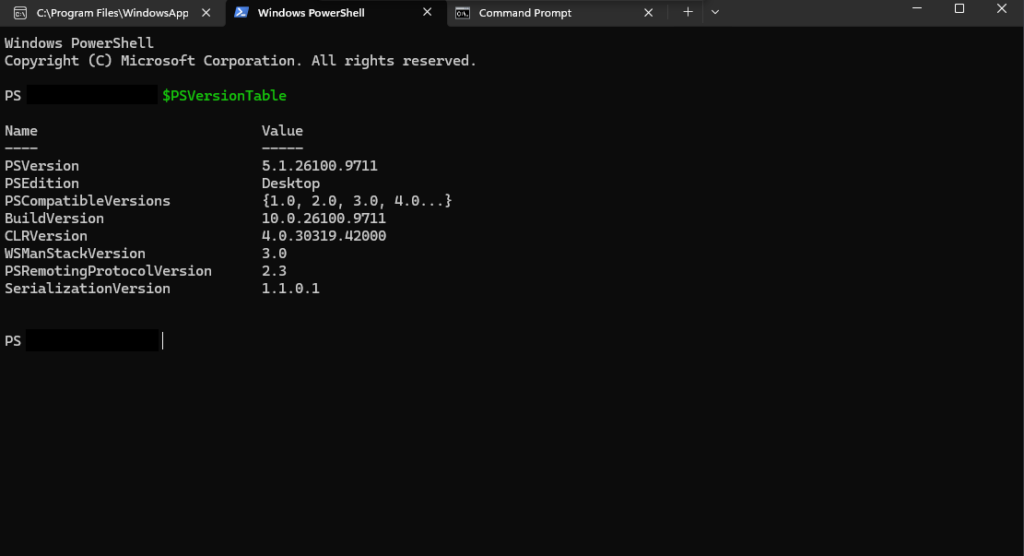
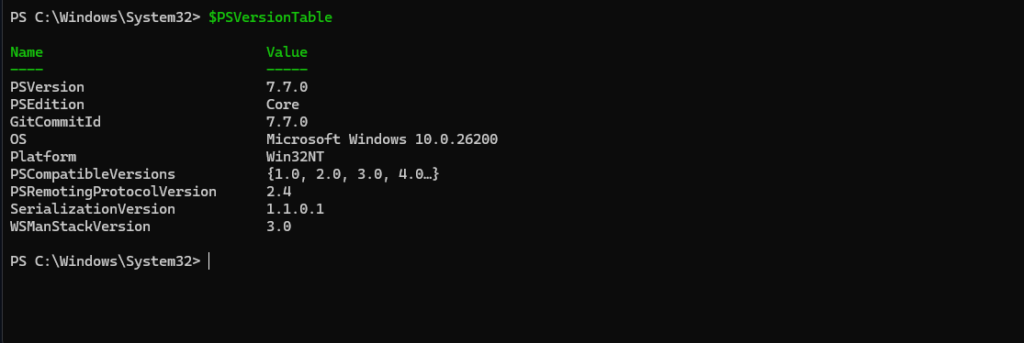
To see which version you’re in, run:
$PSVersionTableThe PSVersion line shows 5.1 or 7.x. To install PowerShell 7 with winget, run this in either shell:
winget install --id Microsoft.PowerShell --source wingetAfterwards it appears in the Start menu as PowerShell 7. Windows Terminal normally adds a PowerShell profile for it too, but on our test laptop it didn’t, even after reopening Terminal. If yours is missing, open Settings in Terminal, select + Add a new profile, and set Command line to pwsh.exe. On a work PC, an admin policy can also stop Terminal from adding it.
Which one should you use?
- Following a guide: use whichever shell the guide names. A command written for Command Prompt can fail in PowerShell if it uses cmd built-ins or
%VARIABLE%syntax. - Quick network checks (
ipconfig,ping,tracert,nslookup): either one. They’re separate programs, so they behave the same. - Anything you’ll repeat or automate: PowerShell. A script you write today keeps working, and you can schedule it.
- Old batch files: leave them in Command Prompt, or rewrite them in PowerShell when you next need to change them.
If you need a Command Prompt built-in while you’re in PowerShell, hand it to cmd with cmd /c. For example:
cmd /c verOpen either shell in Windows Terminal
- Right-click Start (or press Windows key + X) and select Terminal. Choose Terminal (Admin) for commands that change system settings.
- Select the down arrow next to the tab and pick Command Prompt, Windows PowerShell or PowerShell (version 7).
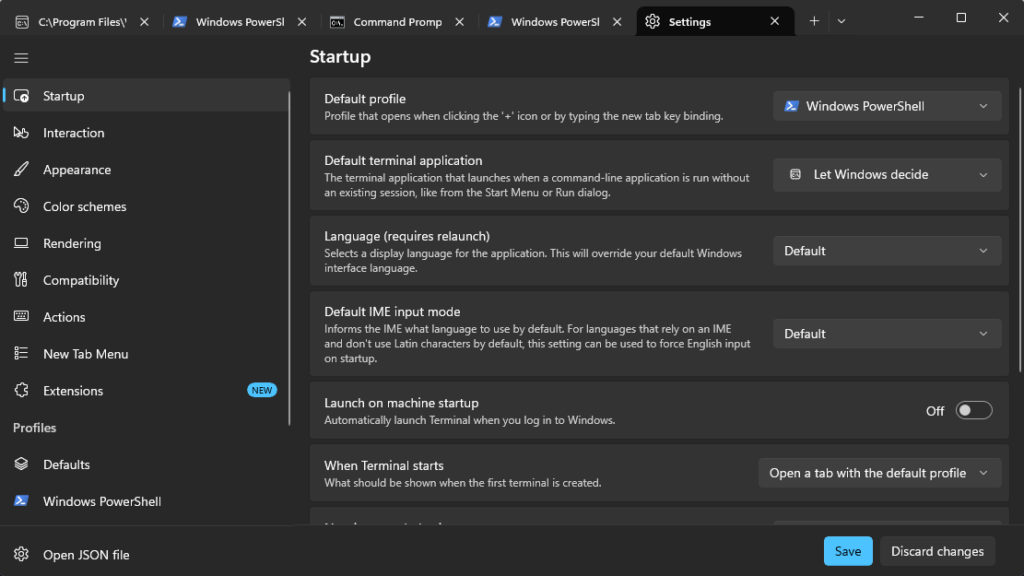
- To change which one opens first, open Settings in Terminal, select Startup, and change Default profile.
Questions people ask
Is PowerShell replacing Command Prompt?
Not removing it. Command Prompt is still in Windows 11 and runs batch files as before, but Windows Terminal opens PowerShell by default and new Microsoft admin tools are written for PowerShell.
Can PowerShell run Command Prompt commands?
Programs such as ipconfig, ping and shutdown run the same. Familiar names like cd, dir and copy work through aliases, but their old switches don’t. For a cmd built-in, run it with cmd /c, for example cmd /c ver.
Do I need PowerShell 7?
No. Windows PowerShell 5.1 handles everyday jobs. Install PowerShell 7 if you want the newer features, or if a script or guide asks for it. Both can stay installed.
Is it safe to use PowerShell?
Typing your own commands is as safe as using Command Prompt. The risk is pasting commands or running scripts from sources you don’t trust, so read a command before you press Enter, especially in an admin window.
Related fixes
- How to check your laptop battery health in Windows 11
- Windows 11 running slow? 10 tested ways to speed it up
- Printer offline in Windows 11? 8 fixes
Sources: Differences between Windows PowerShell 5.1 and PowerShell 7, Install PowerShell 7 on Windows, Using aliases, Windows Terminal setup and Dynamic profiles in Windows Terminal (Microsoft Learn).