Outlook Keeps Asking for Password? 7 Fixes That Work
If Outlook keeps asking for password over and over, even when you type it correctly, the cause is usually saved sign-in details that have gone stale or a setting in your Outlook profile. These fixes are for classic Outlook for Windows with a Microsoft 365 or Outlook.com account. Work through them in order.
Steps checked on Windows 11 25H2 · Outlook for Microsoft 365 (Version 2609)
Quick fix
- Close Outlook.
- Open Credential Manager › Windows Credentials and remove entries for Outlook, MicrosoftOffice or your email address.
- Open Outlook, sign in once and tick Remember my credentials.
Using a work or school account? Repeated prompts can also come from your organization’s security settings, such as multi-factor sign-in or a password that has expired. If the fixes below don’t help, contact your IT team before changing anything else.
In this guide
1. Check your password works on the web
Sign in to Outlook on the web: outlook.office.com for work or school accounts, or outlook.live.com for Outlook.com. If your password fails there too, the problem is the password itself: reset it, or ask your IT team. If it works on the web, the problem is in Outlook on your PC, so carry on.
2. Clear saved passwords in Credential Manager
Old or damaged saved sign-in details are the most common cause.
- Close Outlook completely.
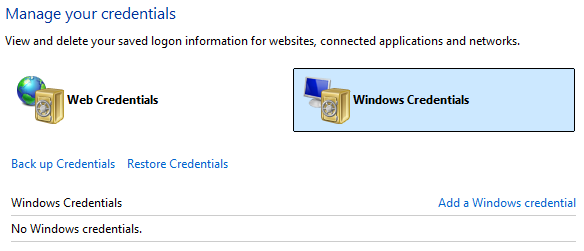
- Search the Start menu for Credential Manager and open it.
- Select Windows Credentials.
- Under Generic Credentials, expand any entry that mentions Outlook, MicrosoftOffice or your email address, and select Remove.
- Restart your PC, open Outlook and sign in. Tick Remember my credentials if you see it.
3. Turn off “Always prompt for logon credentials”
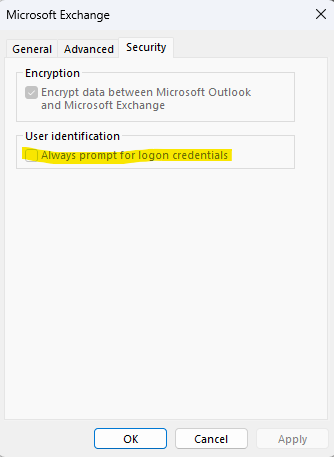
This setting makes Outlook ask for your password every time, even when it has it saved.
- In Outlook, go to File › Account Settings › Account Settings.
- Select your account and choose Change.
- Select More Settings and open the Security tab.
- Untick Always prompt for logon credentials.
- Select OK, Next, then Finish, and restart Outlook.
4. Sign out of Office and update
In Outlook, go to File › Office Account and select Sign out. Close Outlook, open it again and sign back in. Then, on the same page, select Update Options › Update Now to install the latest Office updates.
5. Run Microsoft’s diagnostic
Microsoft has an automated diagnostic called Outlook keeps asking for my password that checks for common causes and suggests fixes. It is linked from Microsoft’s support article on repeated password prompts.
6. Create a new Outlook profile
A damaged Outlook profile can keep the prompts coming even after the steps above. A new profile gives Outlook a clean start.
- Close Outlook.
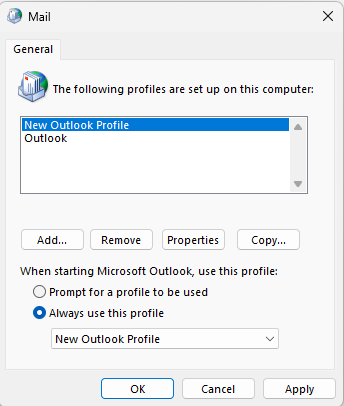
- Open Control Panel and select Mail (Microsoft Outlook).
- Select Show Profiles, then Add, give the profile a name and add your account.
- Under When starting Microsoft Outlook, choose Always use this profile and pick the new one.
- Open Outlook. Your email downloads again from your Microsoft 365 or Outlook.com mailbox, which can take a while.
Keep the old profile until the new one works properly. If you use a separate data file (.pst) for archived mail, add it to the new profile afterwards.
7. Older Outlook versions only: change Logon network security
On older versions of Outlook connecting to Microsoft 365, Microsoft says the prompts can come from the Logon network security setting. Outlook 2016 and later, including Outlook for Microsoft 365, aren’t affected.
- Close Outlook and open Control Panel › Mail.
- Select Show Profiles, choose your profile and select Properties, then E-mail Accounts.
- Select your account › Change › More Settings › Security tab.
- Set Logon network security to Anonymous Authentication, then select OK, Next and Finish.
Using the new Outlook or an iPhone?
This guide covers classic Outlook for Windows. In the new Outlook for Windows, start with fixes 1 and 4, then try removing and re-adding your account. A separate guide for iPhone is coming.
Outlook keeps asking for password: questions people ask
Why does Outlook keep asking for my password?
Usually because Windows has an old or damaged saved password for your account, or a profile setting forces Outlook to prompt. Clearing saved credentials in Credential Manager fixes it most often.
Will creating a new Outlook profile delete my emails?
No. Email in a Microsoft 365 or Outlook.com mailbox is stored online and downloads again into the new profile. Keep the old profile until the new one works, and re-add any separate .pst data files.
Why does Outlook keep asking for my password even though it is correct?
If the same password works on outlook.office.com or outlook.live.com, the problem is on your PC, not the password. Start with fixes 2 and 3 above.
Why does Outlook on my iPhone keep asking for my password?
That’s a different app with different fixes. We’ll cover it in a separate guide.
Related fixes
- How to clear the Teams cache in Windows 11
- Windows 11 running slow? 10 tested ways to speed it up
- How to check your laptop battery health in Windows 11
Sources: Outlook continually prompts for your password when you try to connect to Microsoft 365 and Outlook prompts for password and doesn’t use Modern Authentication (Microsoft Learn).