How to Back Up Windows 11 to an External Hard Drive
Here’s how to back up Windows 11 so a dead laptop, a stolen bag or a bad update doesn’t take your files with it. The simplest reliable setup is File History to an external drive, which keeps hourly copies of your files on a drive you control. Windows also has a cloud backup app and an older full-disk tool, and this guide explains what each one actually saves.
Tested on Windows 11 25H2 · Lenovo T14s Gen 6 · 2 TB external NVMe SSD
Quick fix
- Plug in an external drive with more free space than the files you want to keep.
- Open Control Panel and, under System and Security, select Save backup copies of your files with File History.
- Select Turn on. If the wrong drive is chosen, use Select drive first.
- Leave the drive plugged in, or connect it regularly, so File History can keep copying new and changed files.
In this guide
How to back up Windows 11: which tool does what
Windows 11 has three built-in backup tools. They save different things, so it helps to know which one you need before you start.
- File History copies your personal files (Desktop, Documents, Pictures, Videos, Music and other library folders) to an external drive or network location, and keeps older versions. This is the one to use for an external hard drive.
- Windows Backup app saves your folders, app list, Wi-Fi networks and many settings to your Microsoft account and OneDrive. It’s handy for moving to a new PC, but it needs OneDrive space and doesn’t use an external drive.
- System image (Backup and Restore (Windows 7)) copies the whole drive, including Windows and apps. Microsoft deprecated it years ago and no longer develops it, so treat it as a legacy extra, not your main backup.
OneDrive is not a backup on its own. It syncs, so a file you delete or overwrite on your PC changes in OneDrive too. Keep a separate copy on an external drive as well.
Method 1: Back up your files with File History
File History is built into Windows 11 Home and Pro. Once it’s on, it copies new and changed files every hour by default while the drive is connected.
- Plug in your external drive and wait for it to show in File Explorer.
- Select Start, type Control Panel and open it.
- Under System and Security, select Save backup copies of your files with File History.
- Check the drive shown is your external drive. If not, select Select drive, pick it and select OK.
- Select Turn on. The first backup starts straight away and can take a while if you have a lot of photos or videos.
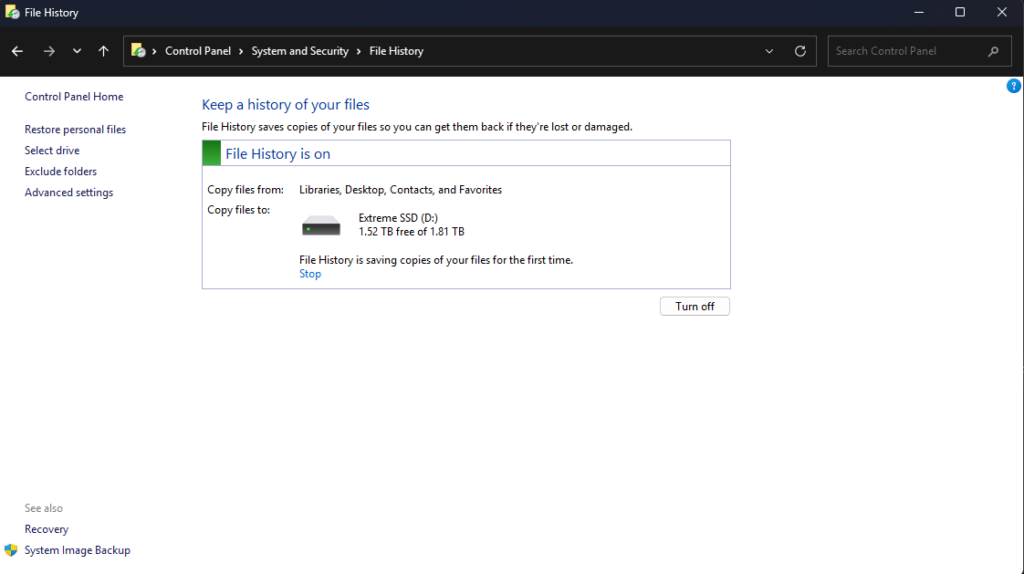
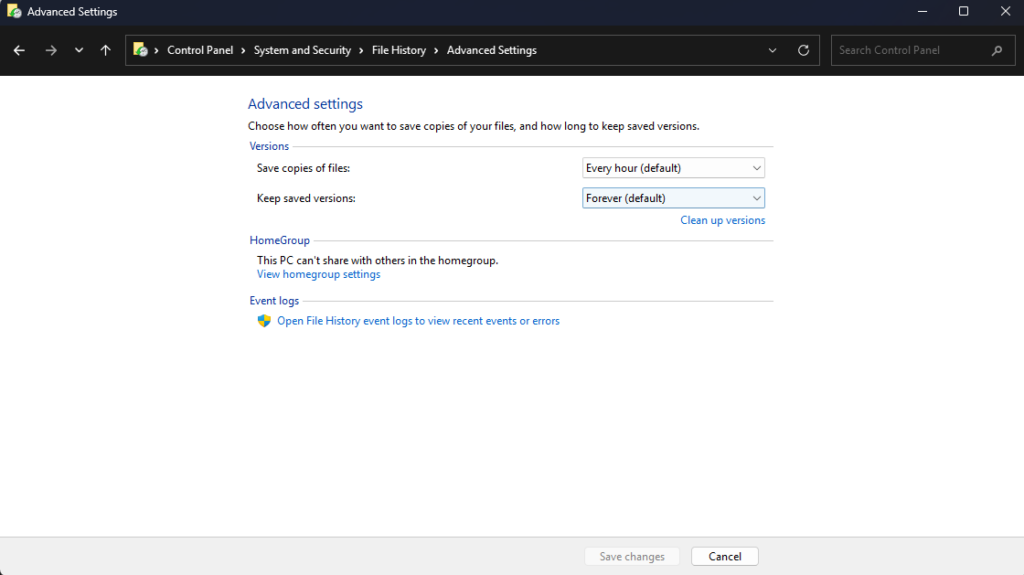
Choose how often it saves and how long it keeps versions
In the File History window, select Advanced settings. Save copies of files sets how often it copies (every hour is the default), and Keep saved versions sets how long old versions stay on the drive. If your drive fills up, choose a shorter period here.
Back up other folders
File History backs up your libraries plus your Desktop. To add another folder, right-click it in File Explorer, select Show more options › Include in library and pick a library such as Documents. To skip a large folder you don’t need, use Exclude folders in the File History window.
Method 2: Windows Backup app and OneDrive
The Windows Backup app is the quickest way to get a new or reset PC looking like your old one. It saves to your Microsoft account rather than to an external drive.
- Select Start, type Windows Backup and open the app. You can also manage the same options in Settings › Accounts › Windows backup.
- Under Folders, turn on the folders you want synced to OneDrive.
- Turn on Remember my apps and Remember my preferences, then tick the settings you want kept, such as Wi-Fi networks and personalization.
- Select Back up.
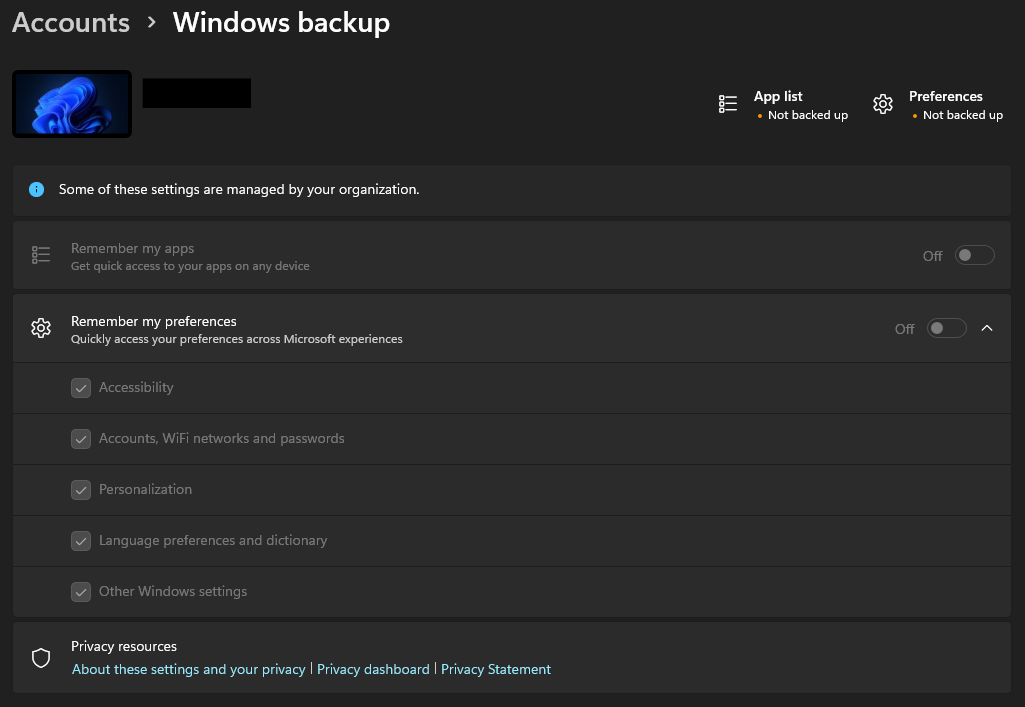
A free Microsoft account includes 5 GB of OneDrive storage, which most photo libraries outgrow fast. The app needs a personal Microsoft account; it doesn’t work with work or school accounts, and on a company-managed PC these options may be locked. To restore, sign in with the same Microsoft account while setting up the new PC and choose the backup when Windows offers it.
Method 3: Create a system image (legacy)
A system image is a full copy of your Windows drive that you can put back if the drive dies. Windows 11 still includes the tool, but Microsoft deprecated it in 2017 and recommends a third-party full-disk backup instead. Use it only as an extra, alongside File History.
- Plug in an external drive with enough free space for everything on your C: drive.
- Open Control Panel › System and Security › Backup and Restore (Windows 7).
- Select Create a system image, pick the external drive and follow the steps.
- When it finishes, you can skip creating a system repair disc if you don’t have a CD or DVD drive.
Encrypted drive? If BitLocker or device encryption is on, save your recovery key before you rely on any backup or restore. See how to find your BitLocker recovery key.
How to restore files from your backup
With File History, you can get back a single file, a whole folder or an older version of a document.
- Plug in your backup drive.
- In File Explorer, go to the folder that held the file. Right-click it and select Restore previous versions.
- On the Previous Versions tab, pick a version from before the file was lost or changed.
- To check it first, select Open › Open in File History. To keep your current copy too, use Restore › Restore to and choose another folder.
Careful: a plain Restore replaces the file that’s on your PC now, and that can’t be undone. Use Restore to if you’re not sure.
Which external drive should you use?
- Size: at least twice the size of the files you’re backing up, so File History has room for older versions. Check your Documents, Pictures and Videos folders in File Explorer to see how much that is.
- SSD or hard drive: an external SSD is faster and tougher to knock about; a portable hard drive gives more space for the money.
- Keep it separate: don’t use a drive that’s always in the same bag as the laptop if you can avoid it. A second copy somewhere else protects you from theft and fire.
Questions people ask
Does Windows 11 have a backup to an external drive?
Yes. File History, in Control Panel, copies your personal files to an external drive and keeps older versions. The Windows Backup app saves to OneDrive instead, not to an external drive.
What does the Windows Backup app actually save?
Your chosen folders (synced to OneDrive), a list of your installed apps, Wi-Fi networks and many Windows settings. It doesn’t copy the apps themselves or your whole drive.
How big an external drive do I need?
Check how much space your personal folders use and get a drive at least twice that size, so there’s room for older versions of your files.
How often should I back up?
File History copies changed files every hour by default while the drive is connected. If you only plug the drive in now and then, aim for at least once a week.
Related fixes
- How to find your BitLocker recovery key in Windows 11
- Windows 11 running slow? 10 tested ways to speed it up
- How to clear the Teams cache in Windows 11
Sources: Backup and restore with File History, Back up and restore with Windows Backup and Backup, restore, and recovery in Windows (Microsoft Support), Deprecated features for Windows client (Microsoft Learn).