PDFgear Review: Free PDF Editor Tested on Windows 11
This PDFgear review is for anyone who needs to edit a PDF without paying for Adobe Acrobat. PDFgear is a free PDF editor for Windows, Mac, iPhone, Android and the web. I use it on Windows 11 to change text, sign documents, and merge and shrink files. Below is what works well, what it sends online, and where it falls short.
Tested on Windows 11 25H2 · PDFgear for Windows 3.0.1
The short verdict
- Price: free, with no sign-up and no watermark on saved files.
- Best at: editing text, signing, merging, splitting and compressing PDFs on your own PC.
- Watch out: the AI features send your PDF’s content to an online AI service. Everything else in the desktop app runs offline.
- Download it only from the official site, pdfgear.com.
In this guide
PDFgear review: why I keep using it
What I like most is how little there is to learn. I opened PDFgear and got to work without reading a single guide. Deleting and adding text works the way you’d expect, and the tools are where you look for them.
Making a signature and flattening it into the page took about a minute. For most of the PDF jobs I have, at work and at home, it does everything I need, and it costs nothing.
What PDFgear can do
- Edit: change or delete existing text, add new text, images, links and shapes.
- Annotate: highlight, add notes, stamps and drawings.
- Organize: merge files, split them, and add, delete or reorder pages.
- Sign and fill: create a signature, fill in forms, and add fillable fields.
- Convert: PDF to and from Word, Excel, PowerPoint, images and text, including batches of files.
- OCR: turn a scanned page into text you can select and search, in more than 30 languages.
- Compress and protect: shrink large files and add a password.
Download and install PDFgear safely
- Go to pdfgear.com and download the Windows version. Skip download sites and ads that offer PDFgear, because repackaged installers are a common way malware spreads.
- Run the installer and follow the steps. You don’t need to create an account.
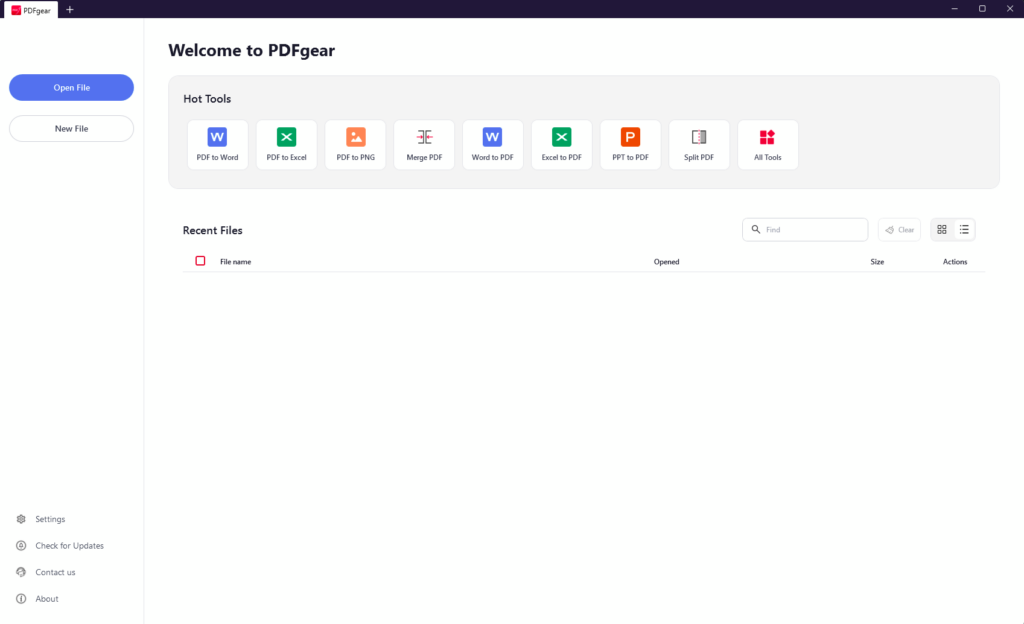
- Open PDFgear, then open a PDF from the start screen or drag it into the window.
Edit text in a PDF
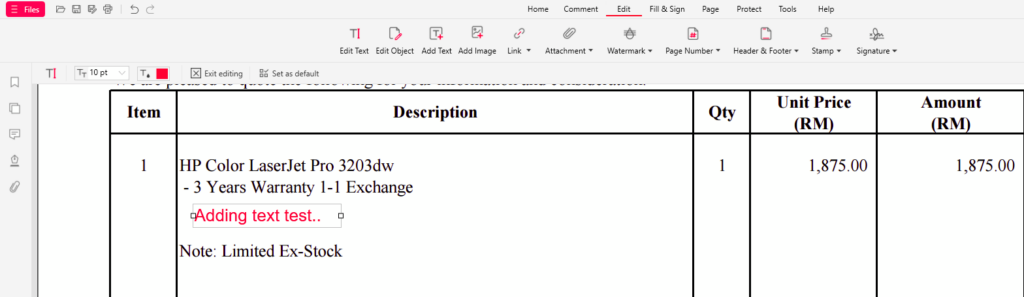
Open the PDF, go to the Edit tab and select Edit Text, then click into the text you want to change. You can delete words or type new ones. To put text somewhere new, select Add Text and click on the page. Save with Ctrl + S, or use Save As to keep the original untouched.
Keep a copy. Save edits to a new file the first time, so you still have the original if something shifts on the page.
Create a signature and flatten it
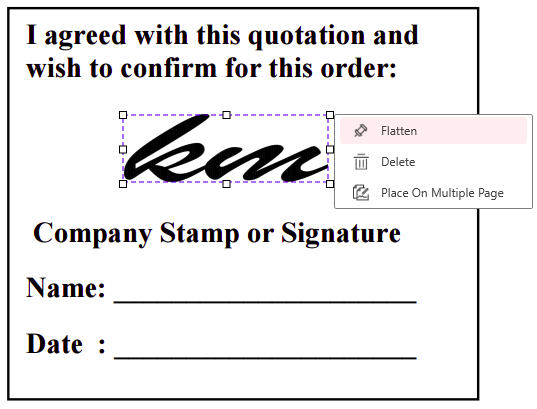
On the Edit tab, open Signature to draw, type or upload your signature, then place it on the page. Before you send the file, right-click the signature and select Flatten. Flattening turns it into part of the page, so the person receiving the PDF can’t move or edit it.
Merge, compress and convert
These are the jobs most people search for, and PDFgear does them on your own PC rather than on a website.
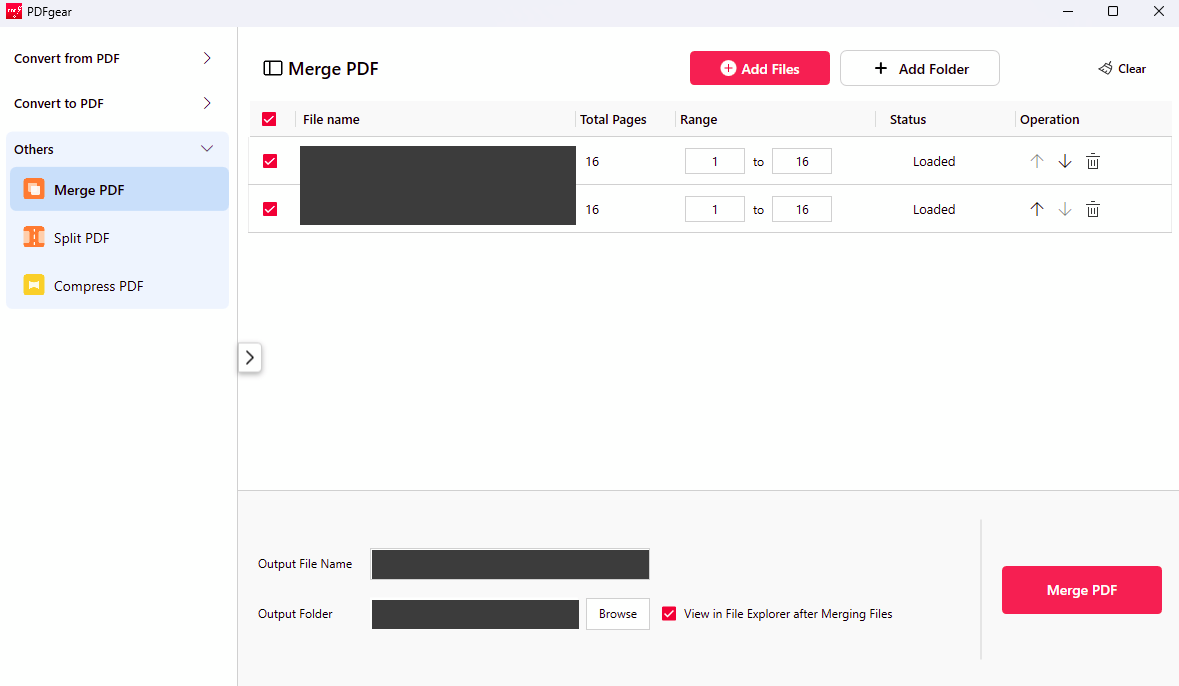
- Merge: open Merge PDF, select Add Files, set the order with the up and down arrows, then select Merge PDF.
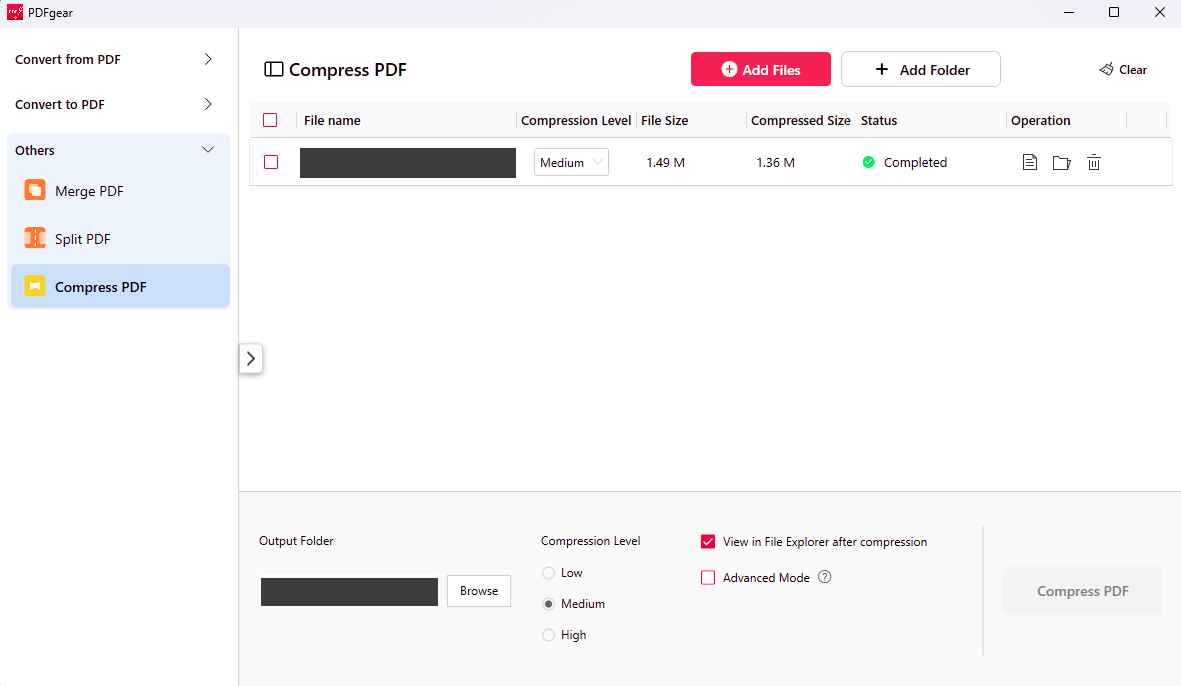
- Compress: open Compress PDF and pick Low, Medium or High. On my test file, Medium took it from 1.49 MB to 1.36 MB, about 9% smaller.
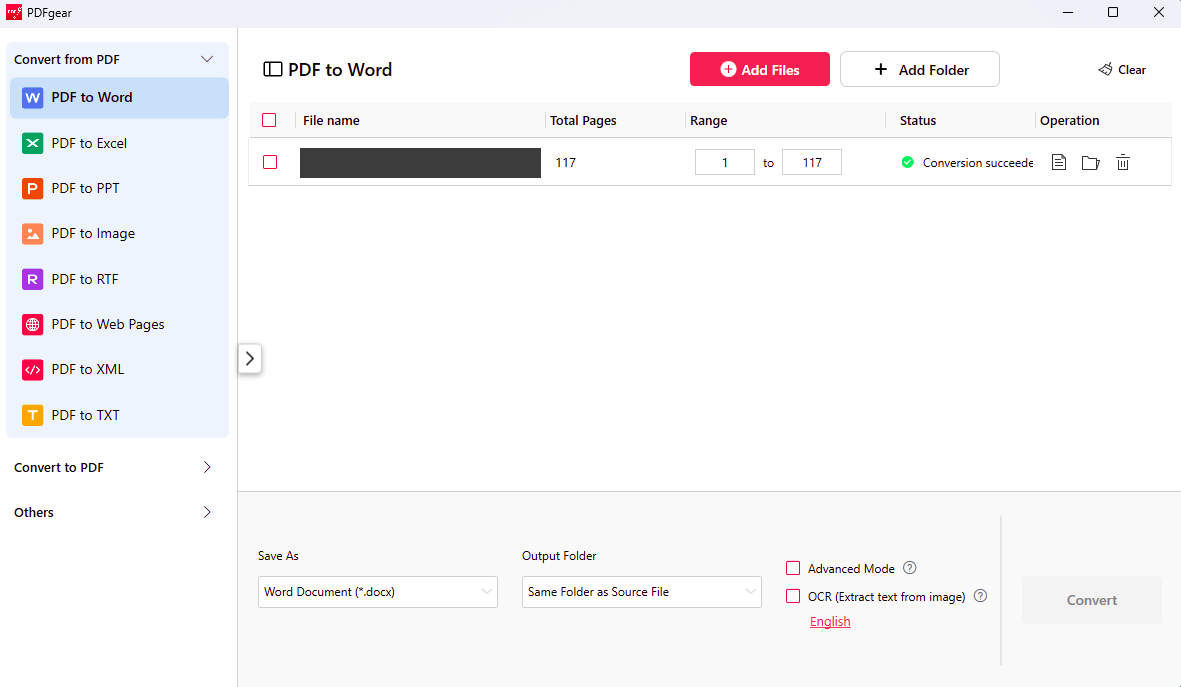
- Convert to Word: open PDF to Word, add the file and select Convert. For scanned pages, tick OCR (Extract text from image) first, or Word gets a picture instead of text.
Is PDFgear safe?
Yes, if you download it from the official site. On privacy, it depends on which features you use:
- Desktop tools stay on your PC. PDFgear says conversion, merging, splitting and compressing in the desktop app run locally, without uploading files. Editing also works with no internet connection.
- The AI features don’t. PDFgear’s privacy policy says that when you use the AI features, the content of your PDF may be sent to Microsoft Azure OpenAI Service. Don’t use the AI chat or summary on contracts, payslips, medical letters or anything confidential.
- No account needed. You can use the app without signing up, so there’s no login to protect.
Where PDFgear falls short
- No direct cloud storage link. You can’t open files straight from OneDrive, Google Drive or Dropbox inside the app. Sync the folder to your PC first.
- AI needs the internet and sends document content online (see above).
- It’s not a company standard. If your workplace uses Adobe Acrobat for shared review or signing workflows, stick with what your colleagues use.
Who should use it
If you need a free Adobe Acrobat alternative for everyday jobs (fixing a typo, signing a form, combining scans, shrinking a file for email), PDFgear covers them without a subscription. I’d keep it as my main PDF editor at home and recommend it to anyone who doesn’t already pay for Acrobat.
Questions people ask
Is PDFgear really free?
Yes. You can download and use it without paying or signing up, and files you save don’t get a watermark.
Is PDFgear safe?
Yes, when you download it from pdfgear.com. The desktop app processes edits, conversions, merges and compression on your PC. Only the AI features send document content online.
Does PDFgear work offline?
Yes. You can open, edit, sign, merge and compress PDFs without an internet connection. The AI chat and summary features need the internet.
Is PDFgear a good free Adobe Acrobat alternative?
For everyday editing, signing, merging and compressing, yes. If your workplace relies on Acrobat for shared review, use what your team uses.
Related fixes
- Windows 11 running slow? 10 tested ways to speed it up
- How to back up Windows 11 to an external hard drive
- PowerShell vs Command Prompt: what’s the difference?
Sources: PDFgear PDF editor FAQ · PDFgear privacy policy · PDFgear statement on local processing