Restart Computer From Command Prompt and PowerShell
You can restart computer from Command Prompt with one short command, which is handy when the Start menu is frozen, you’re connected over Remote Desktop, or you want a restart on a timer. This guide covers the shutdown command, the PowerShell cmdlets that do the same job, how to cancel a restart, and how to restart straight into the BIOS or the recovery menu.
Tested on Windows 11 25H2 · Lenovo ThinkPad T14 Gen 6 · Command Prompt, Windows PowerShell 5.1 and PowerShell 7.6
Quick commands
- Restart now:
shutdown /r /t 0 - Shut down now:
shutdown /s /t 0 - Restart in 10 minutes:
shutdown /r /t 600, cancel withshutdown /a - PowerShell:
Restart-ComputerorStop-Computer
In this guide
Restart computer from Command Prompt
Save your work first. Then open Command Prompt (search for cmd in Start) or Terminal, and run:
shutdown /r /t 0/r means restart and /t 0 sets the delay to zero seconds. Without /t, Windows waits 30 seconds and shows a notice first.
To shut down instead of restarting, swap /r for /s:
shutdown /s /t 0Unsaved work: any delay above 0 seconds also turns on /f, which closes open apps without asking. Save everything before you start a timed restart.
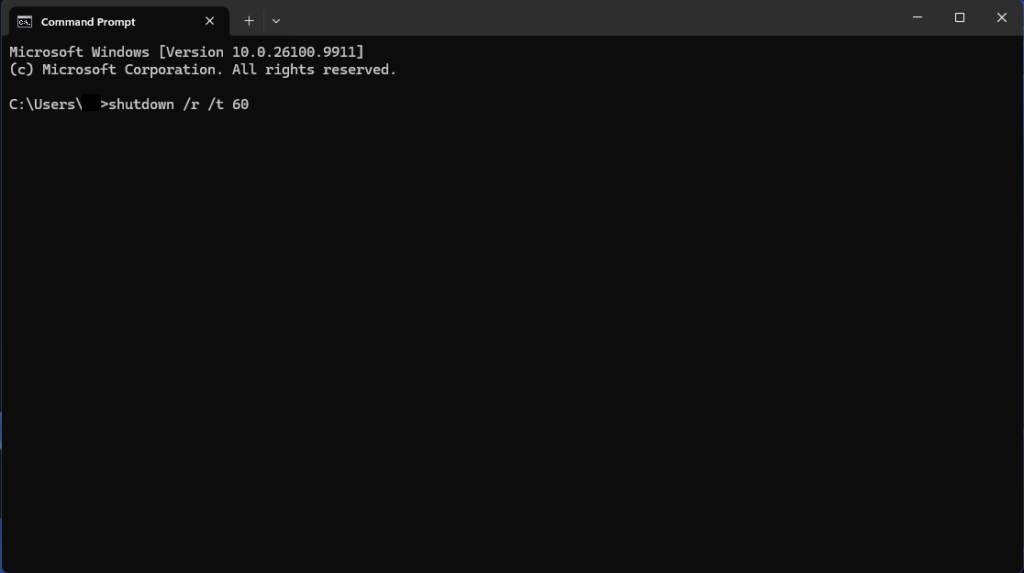
shutdown /r /t 60 restarts the PC after 60 seconds.The shutdown switches you’ll actually use
/rrestart the computer./sshut down./t 600wait 600 seconds (10 minutes) first. Anything from 0 up to 315360000 works./acancel a pending restart or shutdown (only during the countdown)./fforce running apps to close without warning. You can lose unsaved data./lsign out right away (can’t be combined with other switches)./hhibernate, if hibernation is turned on./pturn off the PC right away, with no countdown or warning./c "text"add a message (up to 512 characters) that shows in the notice.
Run shutdown /? to see the full list on your own PC.
PowerShell command to restart computer
In PowerShell you can use the same shutdown commands, or the built-in cmdlets:
Restart-ComputerRestart-Computer restarts the PC. If another user is signed in or an app blocks the restart, add -Force to restart anyway:
Restart-Computer -ForceTo shut down, use Stop-Computer. Both cmdlets accept -WhatIf, which shows what would happen without doing it, handy when you’re testing a script:
Restart-Computer -WhatIf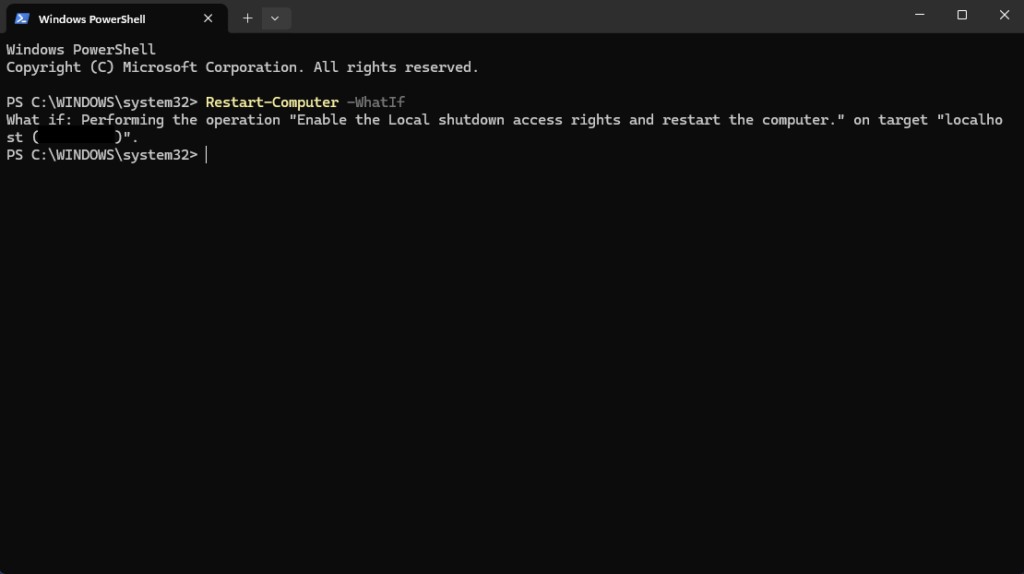
Restart-Computer -WhatIf shows what would happen without restarting.Schedule a restart or cancel one
To restart later, for example after an install finishes overnight, set the delay in seconds. This restarts in one hour with a message:
shutdown /r /t 3600 /c "Restarting to finish updates"Changed your mind? Open a new Command Prompt or PowerShell window during the countdown and run:
shutdown /aWindows shows a notice that the sign-out was cancelled. shutdown /a only works while a countdown is running; once the timer hits zero it’s too late.
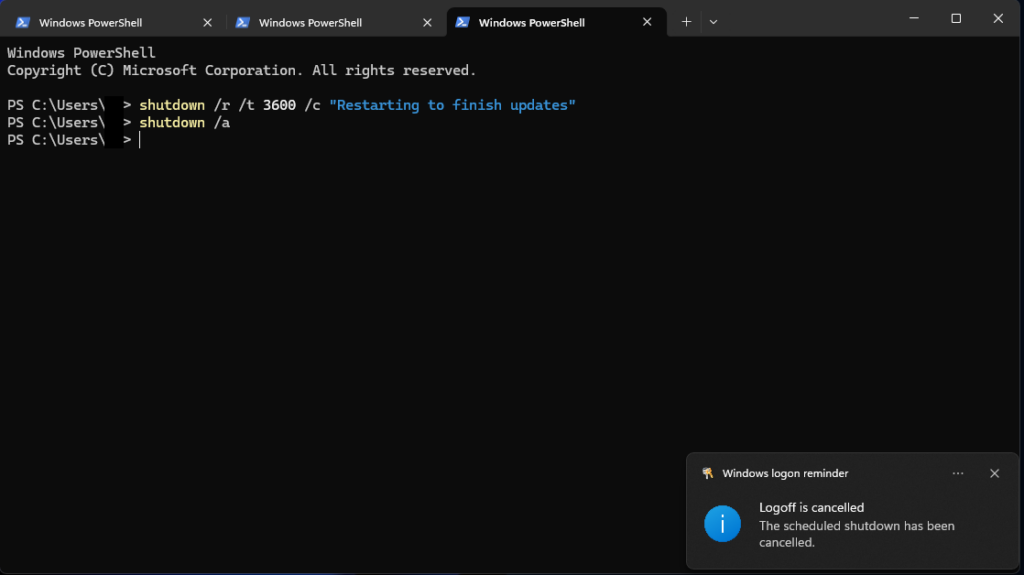
shutdown /a.Restart into the BIOS or Advanced startup
These two are worth knowing when you need to change a firmware setting or start Safe Mode. If you see Access is denied, run them in Terminal (Admin).
Restart straight into the UEFI firmware settings (BIOS):
shutdown /r /fw /t 0Restart into the blue Advanced startup menu (Troubleshoot, Startup Settings, System Restore):
shutdown /r /o /t 0Have your BitLocker recovery key ready. Changing firmware settings can make Windows ask for it on the next boot. See how to find your BitLocker recovery key before you start.
Make a one-click restart shortcut
- Right-click an empty part of the desktop and select New > Shortcut.
- In Type the location of the item, enter
shutdown /r /t 0and select Next. - Name it Restart and select Finish.
- Optional: right-click the shortcut, select Properties > Change Icon and pick the power icon.
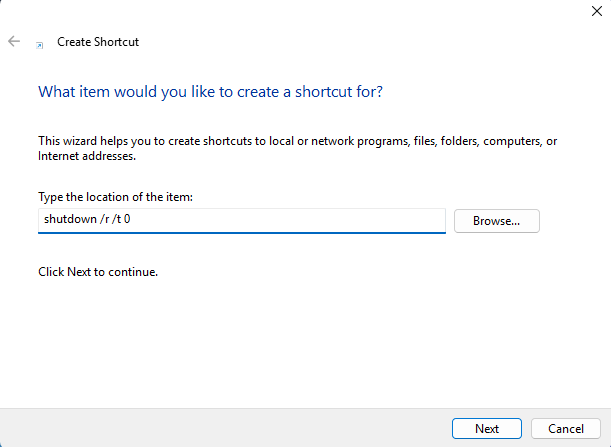
shutdown /r /t 0 as the shortcut’s location.Restart another computer on your network
If you manage a few PCs and have admin rights on them, add /m and the computer name. This gives the other user five minutes and a message:
shutdown /r /m \\PC-NAME /t 300 /c "Restarting for maintenance"Replace PC-NAME with the other computer’s name. In PowerShell, Restart-Computer -ComputerName PC-NAME does the same over PowerShell remoting, which has to be enabled on the other PC.
If the command doesn’t work
- Access is denied: your account doesn’t have the Shut down the system right, or the switch needs admin rights. Try Terminal (Admin). On a work PC, IT may have blocked it.
- A shutdown is already in progress (error 1190): an earlier timed command is still counting down. Run
shutdown /a, then try again. - Nothing happens in PowerShell: an app is blocking the restart. Use
Restart-Computer -Forceafter saving your work. - /fw fails: the PC uses legacy BIOS rather than UEFI, so there’s no firmware menu to restart into. Use the key shown at power-on (often F2, F10, F12 or Del).
Questions people ask
How do I cancel a shutdown from Command Prompt?
Open a new Command Prompt or PowerShell window while the countdown is still running and type shutdown /a. It won’t work once the timer reaches zero.
Does shutdown /f lose unsaved work?
It can. /f closes open apps without asking them to save, and any timed shutdown with /t above 0 turns /f on automatically. Save your files first.
What’s the PowerShell command to restart a computer?
Restart-Computer. Add -Force if an app or another signed-in user blocks it, or -WhatIf to test without restarting. The shutdown /r command also works in PowerShell.
Is restart better than shut down for updates?
Yes. Updates usually need a restart to finish installing. Windows 11 fast startup also means a normal shut down doesn’t fully reset the system, while a restart does.
Related fixes
- Windows 11 running slow? 10 tested ways to speed it up
- How to back up Windows 11 to an external hard drive
- How to find your BitLocker recovery key in Windows 11
Sources: shutdown command reference, Restart-Computer, Stop-Computer and Changing computer state (Microsoft Learn).